
Passkeys Explained: How They Work and How to Set Them Up on Any Device

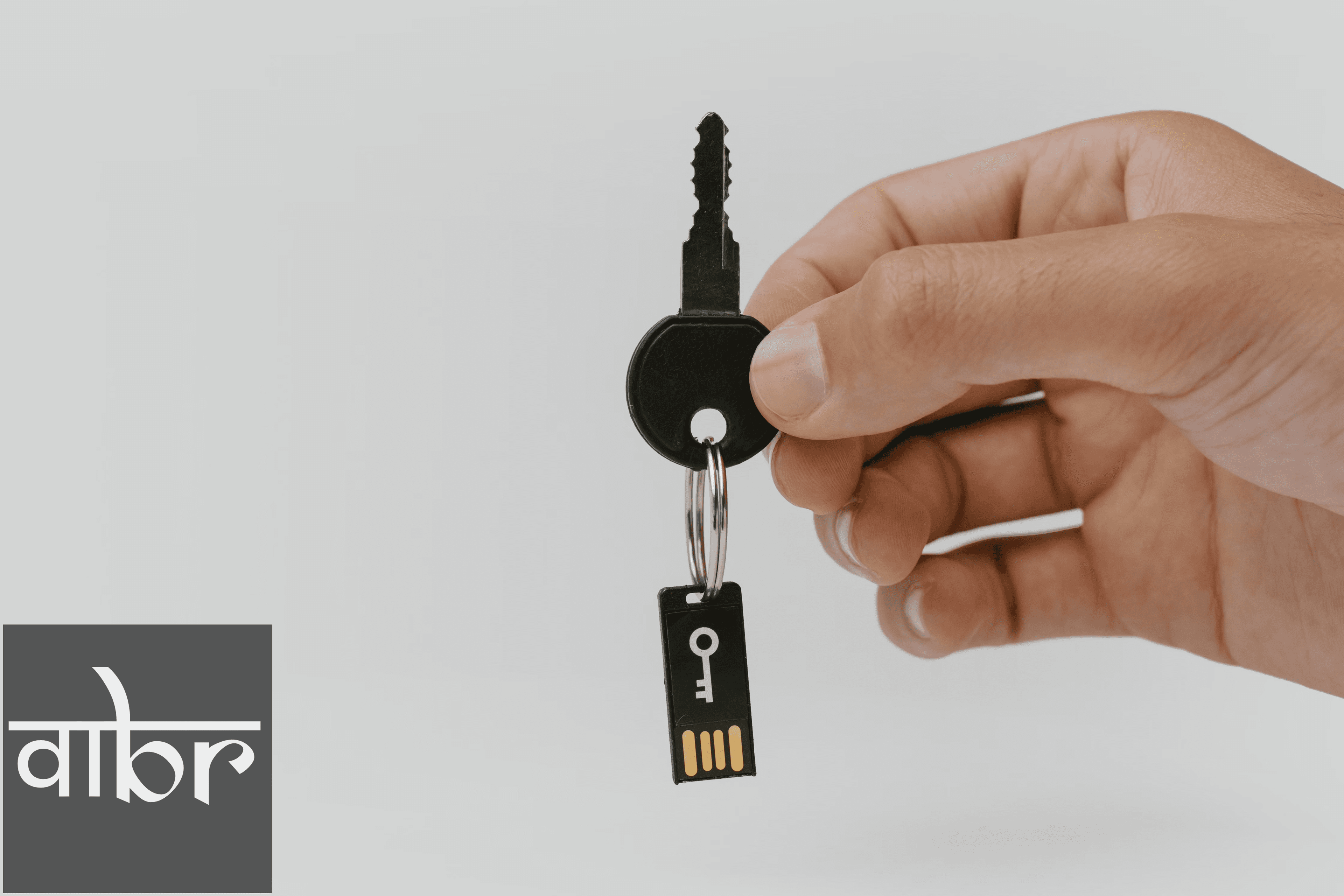
Logging into an online account usually means typing a password, waiting for an SMS verification code, and hoping the service does not suffer a credential breach. Passkeys eliminate this entire routine by replacing shared passwords with cryptographic authentication.
Developed under open standards spearheaded by the FIDO Alliance and the World Wide Web Consortium (W3C), passkeys are backed natively by Apple, Google, Microsoft, and leading password managers. Instead of remembering strings of characters, you verify your identity the same way you unlock your phone: using a fingerprint, facial recognition, or a local device PIN.
How Passkeys Work Under the Hood
Passkeys rely on asymmetric public-key cryptography rather than shared secrets.
When you use a traditional password, both you and the website store the same secret. If a malicious actor breaches the server or tricks you with a convincing phishing site, your password is compromised. Passkeys function differently by splitting authentication into a mathematically linked key pair:
- Public Key: Generated by your device and sent to the service provider's server. This key is public knowledge and harmless if exposed in a server breach.
- Private Key: Stored exclusively inside your device's dedicated cryptographic hardware—such as Apple's Secure Enclave, Android's Titan/Trusty environment, or a PC's Trusted Platform Module (TPM). It is never transmitted across the network.
The Authentication Flow
When you log in, the website sends an unpredictable string of data called a cryptographic challenge to your device. Your device prompts you for a biometric check or PIN to authorize access. Once approved, the local hardware signs the challenge using your private key and returns the signature.
Because the site verifies the signature using the matching public key, you gain instant access. Crucially, the protocol is origin-bound: your device only answers authentication challenges for the exact, registered domain name, making traditional credential phishing technically impossible.
Passkeys vs. Traditional Passwords
Security Factor | Traditional Passwords + SMS 2FA | Passkeys (FIDO2 / WebAuthn) |
|---|---|---|
Phishing Resistance | Vulnerable to fake login portals and reverse proxies | Immune; keys only authenticate on verified, origin domains |
Server Breach Impact | Stolen hashes risk cracking and credential stuffing | Stolen public keys cannot be used to impersonate users |
Sign-In Speed | 30–60 seconds (typing, retrieving SMS/app codes) | 3–5 seconds via biometric scan or hardware PIN |
Credential Re-use | Frequent user bad habit | Impossible; keys are uniquely created per domain |
Storage Method | Memorized or stored in browser/manager vaults | Cryptographically stored in secure hardware chips |
Synced Passkeys vs. Device-Bound Keys
Not all passkeys behave the same way across multiple machines. Implementations fall into two core categories:
- Multi-Device (Synced) Passkeys: Designed for everyday consumer convenience. Your operating system or password manager synchronizes your encrypted private keys across linked hardware using end-to-end cloud encryption (such as iCloud Keychain, Google Password Manager, or Bitwarden/1Password). If you break your phone, your passkeys restore automatically on a replacement device.
- Device-Bound Passkeys: Fixed permanently to a single piece of physical hardware, such as a YubiKey or a corporate-managed laptop. These private keys cannot leave the cryptographic chip. While this offers maximum protection against remote endpoint compromise, losing the physical device requires account recovery via an alternate method.
How to Set Up Passkeys on Any Platform
Setting up a passkey takes less than a minute on supported services like Google, Amazon, PayPal, GitHub, and major banking portals.
Setting Up on Apple Devices (iPhone, iPad, Mac)
iCloud Keychain automatically synchronizes passkeys across your Apple devices running iOS 16, iPadOS 16, macOS Ventura, or newer.
- Open Settings on your iPhone or iPad, tap your name, and select iCloud > Passwords & Keychain to confirm Sync this iPhone is turned on.
- Open Safari and sign into the website where you want to add a passkey using your existing credentials.
- Navigate to the account's Security or Sign-in Settings and click Create a Passkey (sometimes labeled Add Passkey).
- An iOS or macOS system prompt will appear. Tap Continue.
- Confirm the action using Face ID, Touch ID, or your device passcode.
Setting Up on Android and Google Accounts
Google manages passkeys directly through Google Play Services, syncing them across Android devices linked to your Google Account.
- Open Settings on your Android device and go to Google > Manage your Google Account.
- Tap the Security tab, scroll down, and select Passkeys and security keys.
- Tap Create a passkey.
- When prompted by Android System, tap Continue and verify your fingerprint, face, or screen lock PIN.
- To use passkeys on third-party websites in Chrome, head to that website's security dashboard, tap Add Passkey, and confirm the Google prompt.
Setting Up on Windows 11
Windows 11 manages passkeys locally through Windows Hello or synced through third-party browser vaults.
- Ensure Windows Hello is configured via Settings > Accounts > Sign-in options (choose PIN, Facial Recognition, or Fingerprint).
- Open your web browser (Edge, Chrome, or Firefox) and navigate to the target account's security page.
- Click Add a Passkey.
- Windows Hello will display a pop-up window asking where to save the passkey (select Windows Hello or external security key).
- Scan your biometric or enter your Windows Hello PIN to finalize setup.
Setting Up in Third-Party Password Managers
If you regularly switch between different operating systems—such as an iPhone alongside a Windows desktop—saving passkeys to platform-locked vaults like iCloud Keychain creates friction. Dedicated password managers like 1Password, Bitwarden, and Dashlane bridge this gap.
- Install your preferred password manager extension in your desktop browser and app on mobile.
- Set the password manager as your default credential autofill provider in your phone's operating system settings.
- When you click Create a Passkey on a website, the password manager extension intercepts the WebAuthn request.
- Confirm the prompt to save the passkey directly into your encrypted multi-platform vault.
Logging In Across Different Devices (The Cross-Device QR Flow)
What happens when you need to sign in on a smart TV, a friend's PC, or a shared work terminal where your personal passkey vault is not installed? The FIDO2 standard uses Client to Authenticator Protocol (CTAP2) over Bluetooth Low Energy (BLE) to authenticate across disparate devices safely.
- On the secondary computer or terminal, click Sign in with a passkey.
- When prompted, select Use a phone or tablet.
- The screen will render a dynamic QR code.
- Open the native camera app on your iPhone or Android phone and scan the code.
- The two devices establish a local, encrypted Bluetooth handshake to verify physical proximity. This prevents attackers from forwarding QR codes remotely.
- Confirm the sign-in prompt on your phone using your biometric sensor. The desktop browser authenticates immediately.
Frequently Asked Questions
What happens if I lose my phone?
If you use synced passkeys through Apple, Google, or a third-party password manager, your passkeys are backed up with end-to-end encryption. Setting up a new device and logging into your provider account restores your passkey vault. If you use a hardware key like a YubiKey, you must register a secondary backup key or rely on standard account recovery mechanisms.
Do passkeys share my biometric data with websites?
No. Biometric scans (fingerprints and facial contours) remain isolated on your local hardware's secure processor. The website never receives biometric data; it only receives a mathematical signature verifying that authentication succeeded locally.
Can I still use my traditional password?
Yes. Most consumer services currently deploy passkeys in a hybrid configuration, allowing passwords and authenticator apps to remain active as secondary fallback methods. However, major identity providers like Google and Microsoft allow you to remove traditional passwords entirely once your passkeys are verified.
The Bottom Line
Passkeys solve the fundamental trade-off between digital security and everyday convenience. By moving authentication away from memorized strings and phishing-prone SMS codes into hardware-backed cryptography, they make standard user accounts exponentially harder to compromise. Activating passkeys on your primary Google, Apple, and financial accounts is one of the most effective security upgrades you can make today.
Varta Brief Editorial Desk
• Newsroom StaffDedicated to objective, deep, and fact-verified reporting across technology, science, world affairs, and modern markets.
Follow Varta Brief on Google
Add Varta Brief as a preferred source to see our verified stories and daily briefings in Google Top Stories and Discover.
Found this briefing insightful?
Share it with your colleagues and community.
