
SSD vs. HDD vs. NVMe: Storage Types Explained for Buyers and Upgraders

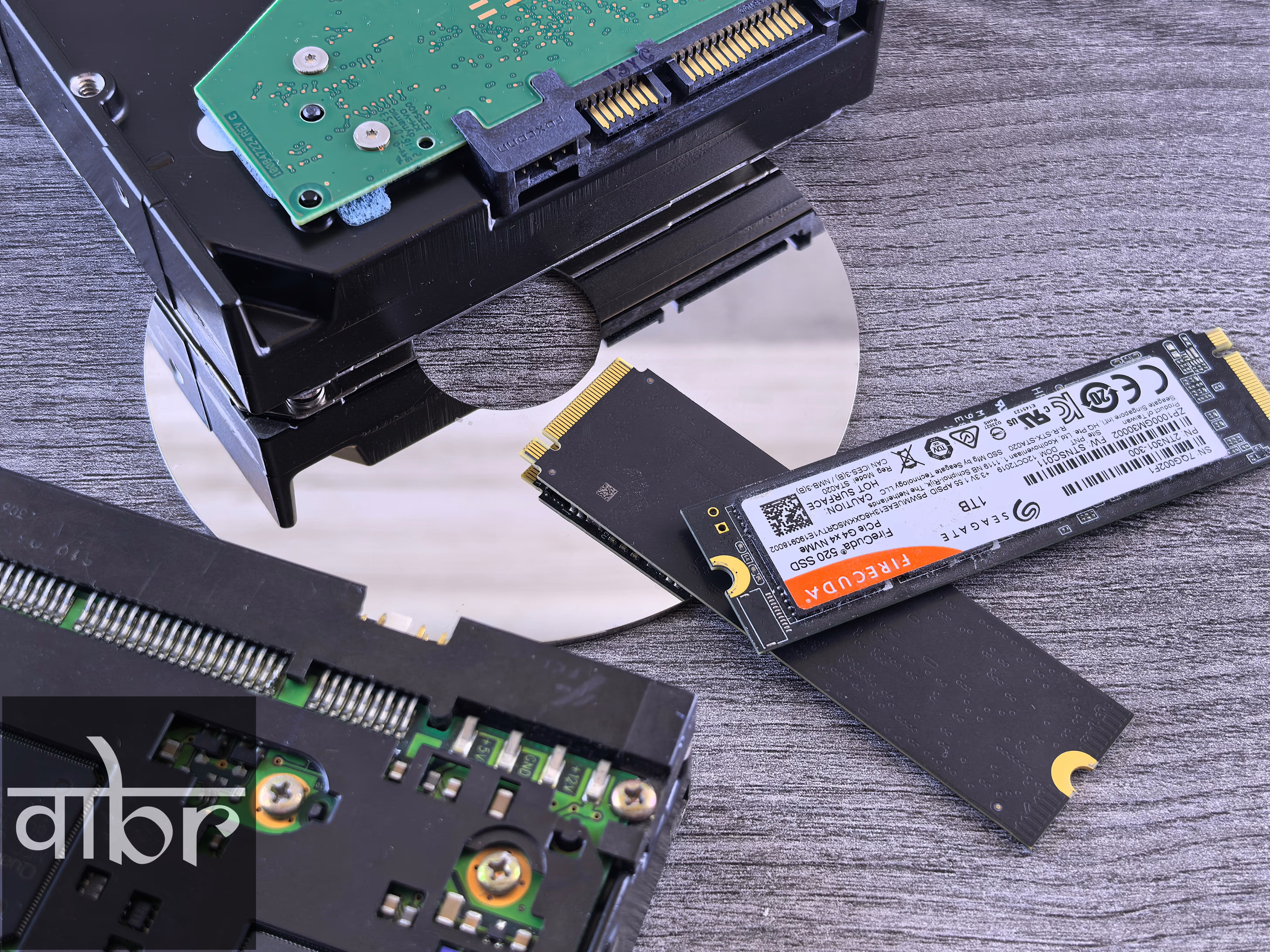
Upgrading computer storage used to mean buying a bigger spinning hard drive and waiting for programs to load. Today, storage drives come in completely different physical shapes, communication protocols, and performance tiers.
Walk into any retailer or configure a new PC, and you will encounter a confusing mix of terms: SATA, HDD, solid-state drive, M.2, and NVMe. Choosing the wrong drive can cause frustrating boot delays or leave you overpaying for speed your workload will never touch.
Understanding how mechanical drives, traditional solid-state drives, and NVMe drives differ helps you match the right drive to your setup without wasting money.
The Three Main Storage Categories
To pick the best drive, you need to know how each category physically stores and transfers your data.
1. Hard Disk Drives (HDD): High Capacity on a Budget
Hard disk drives are mechanical devices that have powered computers for decades. Inside an HDD, magnetic metal platters spin at high speeds (typically 5,400 or 7,200 RPM) while a mechanical read/write head moves across the surface on an actuator arm.
Because HDDs depend on moving mechanical parts, finding and accessing files incurs a measurable delay called seek time. Moving large sequential files works adequately, but reading scattered random files—such as launching Windows or loading game assets—causes noticeable system lag. However, HDDs remain the cheapest way to store multi-terabyte archives of videos, backups, and rarely accessed media.
2. SATA Solid-State Drives (SSD): The Baseline Modern Standard
Solid-state drives replace moving mechanical parts with flash memory chips (NAND flash). Data is stored and accessed electronically through a memory controller, reducing access latency to fractions of a millisecond.
Traditional 2.5-inch SSDs still plug into the same Serial ATA (SATA III) interface originally engineered for mechanical hard drives. While flash memory chips can move data much faster, the SATA III interface maxes out at a theoretical ceiling of 600 MB/s (with real-world speeds capping around 500–560 MB/s). Upgrading an older PC from an HDD to a SATA SSD still yields an immediate, dramatic jump in responsiveness.
3. NVMe M.2 Drives: High-Speed Bandwidth
Non-Volatile Memory Express (NVMe) is an open communications protocol designed specifically for high-speed flash memory. Instead of routing traffic through the aging SATA controller, NVMe drives connect directly to your motherboard's high-speed PCI Express (PCIe) lanes.
Most consumer NVMe drives use the M.2 form factor—a slim, gum-stick-sized card that slots directly onto the motherboard without requiring power or data cables. By utilizing four dedicated PCIe lanes, NVMe drives deliver speeds ranging from 3,500 MB/s (PCIe 3.0) and 7,400 MB/s (PCIe 4.0) up to 14,000+ MB/s on newer PCIe 5.0 drives.
Storage Types Compared: Speeds, Pricing, and Use Cases
Specification / Metric | Mechanical HDD (3.5-inch) | SATA SSD (2.5-inch) | NVMe M.2 SSD (PCIe 4.0 / 5.0) |
|---|---|---|---|
Sequential Read Speeds | 120 – 250 MB/s | 500 – 560 MB/s | 3,500 – 14,000 MB/s |
Random 4K IOPS | ~75 – 100 IOPS | ~50,000 – 95,000 IOPS | 500,000 – 1,500,000+ IOPS |
Average Access Latency | 10 – 15 milliseconds | 0.1 – 0.2 milliseconds | 0.02 – 0.05 milliseconds |
Physical Connection | SATA data + SATA power cable | SATA data + SATA power cable | M.2 motherboard slot (PCIe lanes) |
Noise and Vibration | Audible spinning hum and clicks | Completely silent | Completely silent |
Shock Resistance | Vulnerable to physical drops | High shock resistance | High shock resistance |
Average Cost per Terabyte | ~$15 – $25 / TB | ~$50 – $70 / TB | ~$65 – $120+ / TB |
Primary Workload | Cold archives, NAS setups, CCTV | Budget PC upgrades, bulk storage | OS drive, gaming, 4K/8K video editing |
Form Factor vs. Protocol: Don't Confuse M.2 With NVMe
A common mistake among first-time buyers is assuming every M.2 drive is an NVMe drive.
- M.2 is merely a physical shape (form factor): It describes the rectangular card and slot layout, most commonly sized as M.2 2280 (22mm wide by 80mm long).
- SATA and NVMe are transfer protocols: An M.2 drive can run across the slower SATA bus or the high-speed NVMe PCIe bus.
If you buy an M.2 SATA drive, it will fit into an M.2 slot but still cap out at 550 MB/s. Always inspect the product packaging for the PCIe NVMe label to ensure you receive true high-speed throughput.
Real-World Performance: Does NVMe Speed Actually Matter?
While marketing claims highlight 7,000 MB/s sequential speeds, real-world experience depends on the specific workload you run.
Day-to-Day Windows and Office Tasks
For web browsing, document editing, and launching standard applications, the difference between a SATA SSD and a high-end NVMe drive is negligible. The jump from an HDD to a SATA SSD reduces boot times from 60 seconds to roughly 10 seconds. Going from a SATA SSD to a Gen4 NVMe drive only saves an extra 1 to 2 seconds because day-to-day computing relies on low queue-depth random reads rather than massive continuous file transfers.
PC Gaming and Consoles (DirectStorage and PS5)
In older PC games, SATA SSDs and NVMe drives offer similar load times. However, modern gaming hardware leverages technologies like Microsoft DirectStorage and custom console storage pipelines:
- PlayStation 5 Upgrades: Sony requires a PCIe 4.0 M.2 NVMe SSD with minimum sequential read speeds of 5,500 MB/s and a built-in heatsink. Slower SATA drives or mechanical HDDs cannot run native PS5 games.
- DirectStorage Games on PC: Modern titles (such as Forspoken or Ratchet & Clank: Rift Apart) stream high-resolution assets directly into GPU memory. On an NVMe drive, assets stream instantly without texture pop-in or elevator loading screens.
Video Production and Creative Work
If you edit raw 4K, 6K, or 8K ProRes video footage, high-throughput NVMe drives are essential. Scrubbing through multi-camera timelines requires sustained multi-gigabyte bandwidth that would instantly choke a SATA SSD or mechanical drive.
Reliability and Endurance: Understanding TBW
Because solid-state drives store data electronically, flash cells wear down over time as data is written and rewritten. Manufacturers measure this lifespan in Terabytes Written (TBW).
A typical 1TB consumer NVMe drive features an endurance rating of roughly 600 TBW. To exhaust that lifespan within a standard 5-year warranty period, you would need to write more than 300 gigabytes of new data every single day. For average consumers, gamers, and office workers, the drive will become obsolete long before the flash cells degrade.
Mechanical hard drives do not have flash write limits, but their physical components (motors, bearings, and heads) suffer mechanical wear and shock failure if knocked off a desk while running.
How to Choose the Right Setup for Your Budget
You do not need to choose just one format. The most cost-effective builds combine drive types to balance speed and capacity:
- The Primary Drive (OS & Apps): Install a 1TB or 2TB PCIe 4.0 NVMe SSD in your motherboard's primary M.2 slot for Windows, your primary applications, and active games.
- The Secondary Drive (General Storage): If your motherboard has a second M.2 slot, add a budget PCIe 3.0/4.0 NVMe drive. If slots are limited, a 2.5-inch SATA SSD provides reliable, silent secondary game storage.
- The Archive Drive (Bulk Media & Backups): Connect a high-capacity 4TB to 12TB mechanical HDD (internally or via external USB/NAS) for personal photos, automated system backups, and video libraries where transfer speed is secondary to low cost per gigabyte.
Frequently Asked Questions
Can I install an NVMe drive in an older motherboard without an M.2 slot?
Yes, by using a PCIe-to-M.2 adapter card that plugs into an open PCIe x4, x8, or x16 expansion slot. However, older motherboards that lack native NVMe firmware support may only recognize the drive for secondary storage and cannot boot Windows directly from it without modified BIOS profiles.
Do NVMe SSDs need heatsinks?
PCIe 4.0 and PCIe 5.0 NVMe drives draw noticeable power and generate significant heat during sustained read/write workloads. Without a heatsink, the controller will reach thermal thresholds (usually 70°C to 80°C) and throttle speeds to prevent damage. Most modern desktop motherboards include built-in metal thermal plates, and PS5 upgrades explicitly require a heatsink.
Are 7,200 RPM hard drives noticeably faster than 5,400 RPM drives?
Yes. A 7,200 RPM drive delivers roughly 20% to 30% higher sequential read/write speeds and slightly faster seek times compared to a 5,400 RPM drive. However, 7,200 RPM models draw slightly more power, vibrate more, and generate slightly higher operating temperatures.
The Verdict
If you are building a new computer or upgrading a daily system, a PCIe 4.0 NVMe M.2 SSD offers the best balance of speed, price, and clean cable-free installation. Reserve 2.5-inch SATA SSDs for reviving older laptops without M.2 slots, and keep mechanical HDDs focused strictly on mass cold storage, home media servers, and external automated backups.
Varta Brief Editorial Desk
• Newsroom StaffDedicated to objective, deep, and fact-verified reporting across technology, science, world affairs, and modern markets.
Follow Varta Brief on Google
Add Varta Brief as a preferred source to see our verified stories and daily briefings in Google Top Stories and Discover.
Found this briefing insightful?
Share it with your colleagues and community.