HDMI vs. DisplayPort vs. USB-C and Thunderbolt: Which Monitor Cable Do You Actually Need?

Plugging in a new monitor should be straightforward, yet modern display cables turn a simple task into an alphabet soup of version numbers and bandwidth specs. If you grab an older cable out of a drawer, your premium 4K 144Hz gaming panel or color-accurate Mac display might lock itself to a choppy 60Hz or refuse to display HDR.
Today, three display standards dominate modern desks: HDMI, DisplayPort, and USB-C (including Thunderbolt). Choosing the right one does not require an electrical engineering degree—you just need to match the cable to your primary hardware and workflow.
Quick Verdict: Which Cable Should You Plug In?
If you want the immediate answer without deciphering standards charts, use this rule of thumb:
- PC Gamers: Use DisplayPort. It delivers reliable high-refresh-rate performance, native variable refresh rate (G-Sync and FreeSync) support, and daisy-chaining flexibility.
- Console Gamers and TV Users: Use HDMI 2.1. Modern televisions and current-generation consoles (PS5 and Xbox Series X) are built around HDMI, which carries eARC audio and automatic low latency modes (ALLM).
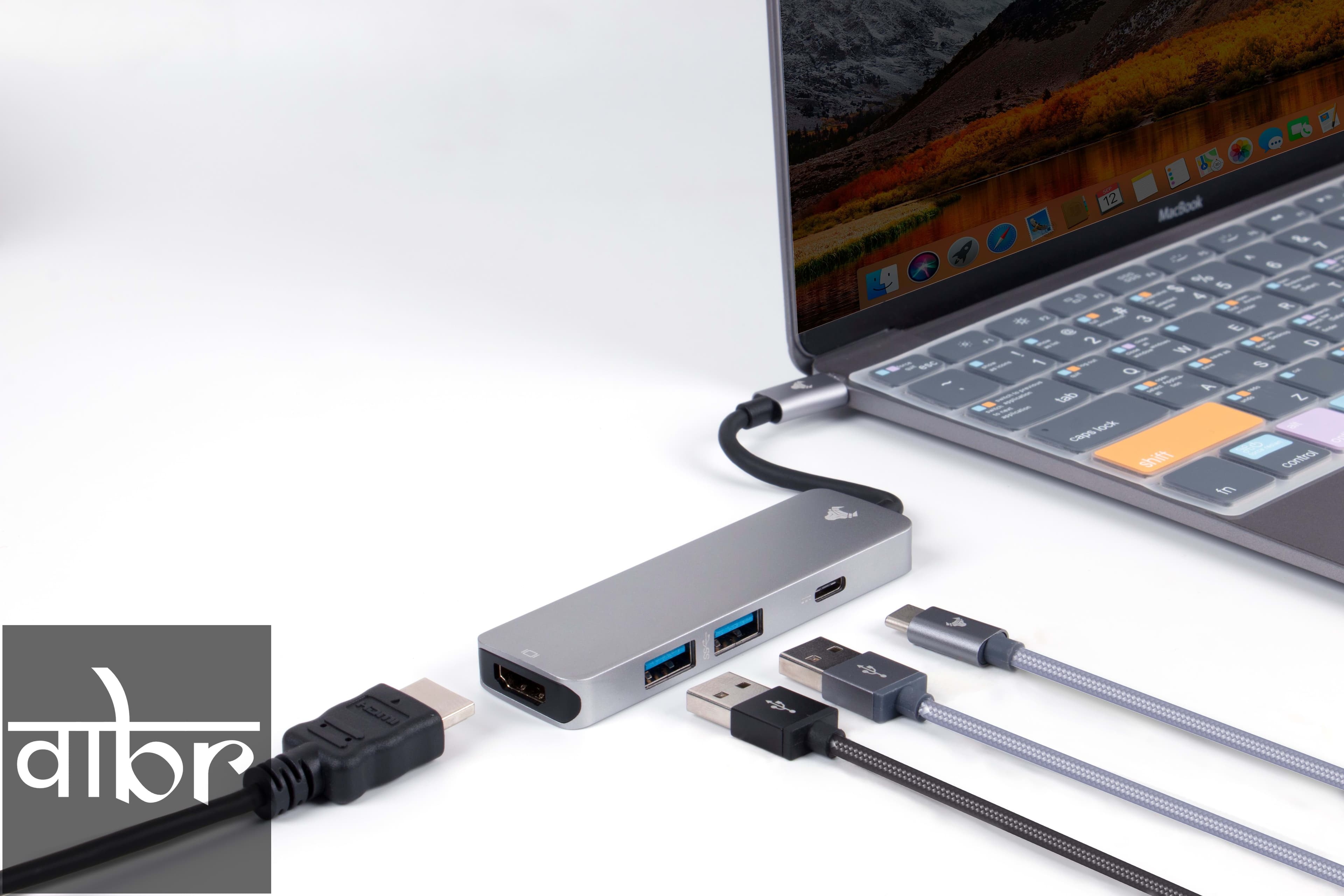
- MacBook and Modern Laptop Users: Use USB-C or Thunderbolt. A single cable can deliver high-resolution video to your display while simultaneously delivering power back to your laptop and acting as a USB hub for peripherals.
1. DisplayPort: The Standard for Desktop PC Gaming
DisplayPort (DP), governed by VESA, is engineered specifically for computing environments and desktop graphics cards rather than consumer home theater gear.
Unlike traditional television connections, DisplayPort was designed from the beginning to transmit packetized data—similar to an Ethernet connection. This packet-based architecture enables advanced display technologies before they reach televisions.
Current Standards: DisplayPort 1.4 vs. DisplayPort 2.1
- DisplayPort 1.4: The most common standard found on modern graphics cards and monitors. With a total bandwidth of 32.4 Gbps, it natively supports 4K at 120Hz or 1440p at 240Hz. Using Display Stream Compression (DSC)—a visually lossless compression algorithm—it can reach 4K at 240Hz and even 8K at 60Hz without visible degradation.
- DisplayPort 2.1: The latest generation pushes bandwidth up to an immense 80 Gbps (UHBR20). This bandwidth allows uncompressed 4K at 240Hz and multi-monitor 8K pipelines, making it the ideal protocol for high-end graphics architectures.
Why PC Users Love It
- Multi-Stream Transport (MST): You can daisy-chain multiple displays together using a single cable run from your graphics card to the first monitor, then from that monitor to the second.
- Universal VRR: DisplayPort offers native, hassle-free integration with both Nvidia G-Sync and AMD FreeSync.
2. HDMI: The Standard for Televisions and Consoles
High-Definition Multimedia Interface (HDMI) remains the universal connection across consumer entertainment gear, including gaming consoles, home audio soundbars, Blu-ray players, and streaming boxes.
While DisplayPort rules desktop monitors, HDMI dominates living room setups. Its inclusion of consumer electronics control protocols allows a TV remote to adjust a soundbar or turn on a connected media console automatically.
Current Standards: HDMI 2.0 vs. HDMI 2.1
- HDMI 2.0: Found on older monitors and budget displays. It caps bandwidth at 18 Gbps, limiting 4K playback to 60Hz with 8-bit color. For gamers wanting 120Hz or 144Hz, HDMI 2.0 forces you down to 1080p or 1440p.
- HDMI 2.1: A substantial upgrade. Bandwidth jumps to 48 Gbps, enabling uncompressed 4K at 120Hz (and up to 4K at 240Hz with DSC) alongside dynamic HDR formats like Dolby Vision. HDMI 2.1 also brings critical gaming protocols like Fixed Rate Link (FRL), Auto Low Latency Mode (ALLM), and eARC for uncompressed multi-channel home theater audio.
Watch Out for HDMI Naming Schemes
The HDMI Licensing Administrator allows manufacturers to label devices as "HDMI 2.1" even if they only support older HDMI 2.0 bandwidth, listing the newer features as optional. Always check the spec sheet of a monitor or TV for explicit mention of 48 Gbps bandwidth and 4K @ 120Hz capabilities rather than relying solely on the logo.
3. USB-C and Thunderbolt: The Single-Cable Workspace
If you work from a modern ultraportable laptop or MacBook, you may not have dedicated HDMI or DisplayPort connections. Instead, you have USB-C ports that deliver video through an underlying standard called DisplayPort Alternate Mode (DP Alt Mode).
When using USB-C for video, the physical cable looks like a regular charging wire, but it reroutes high-speed data lanes inside the connector to carry raw DisplayPort video signals directly to a compatible display.
USB-C vs. Thunderbolt 4 and Thunderbolt 5
- USB-C with DP Alt Mode: Transmits video alongside standard USB 2.0 or 3.2 data channels, along with USB Power Delivery (USB-PD).
- Thunderbolt 4 / USB4: Guarantees 40 Gbps of bi-directional bandwidth. It can drive two 4K displays at 60Hz or a single 8K display, while handling massive data transfers across external storage drives.
- Thunderbolt 5: Delivers up to 80 Gbps of standard bi-directional bandwidth, and up to 120 Gbps using Bandwidth Boost for display pipelines, matching DisplayPort 2.1 capabilities over a standard Type-C form factor.
The Real Advantage: One-Cable Docks
A single USB-C or Thunderbolt cable between your laptop and an equipped monitor can handle three critical jobs simultaneously:
- Send an ultra-high-resolution video signal to the screen.
- Supply up to 100W–140W of power back to charge your laptop battery.
- Turn your monitor into a USB hub, instantly connecting your wired keyboard, mouse, web camera, and Ethernet cable to your laptop.
Specification and Bandwidth Comparison
Connection Standard | Max Raw Bandwidth | Common Resolutions & Max Refresh Rates | Power Delivery | Best For |
|---|---|---|---|---|
HDMI 2.0 | 18 Gbps | 4K @ 60Hz, 1440p @ 144Hz | None | Basic desktop office use, older TVs |
HDMI 2.1 | 48 Gbps | 4K @ 144Hz (native), 4K @ 240Hz (DSC) | Minimal (Consumer Control) | PS5, Xbox Series X, OLED 4K TVs |
DisplayPort 1.4 | 32.4 Gbps | 4K @ 120Hz (native), 4K @ 240Hz (DSC) | None | Standard PC gaming setups |
DisplayPort 2.1 | Up to 80 Gbps | 4K @ 240Hz (native), 8K @ 60Hz (native) | None | High-end GPU rigs, next-gen monitors |
Thunderbolt 4 / USB4 | 40 Gbps | Dual 4K @ 60Hz, Single 4K @ 144Hz | Up to 100W–240W | Modern MacBooks, business laptops |
Thunderbolt 5 | Up to 120 Gbps | Dual 8K @ 60Hz, 4K @ 540Hz (DSC) | Up to 240W | High-end mobile workstations |
Common Pitfalls When Buying Display Cables
- Buying Cheap Passive HDMI Cables for Long Runs: Passive copper HDMI cables lose signal fidelity quickly past 15 feet when pushing high-bandwidth HDMI 2.1 data. For cable runs longer than 15–20 feet, invest in an Active Optical Cable (AOC), which uses fiber optics to eliminate dropouts and black screens.
- Using Phone Charging Cables for USB-C Video: Just because a cable has USB-C connectors on both ends does not mean it carries video. Basic charging cables that ship with smartphones typically only support USB 2.0 data speeds (480 Mbps) and have no video wiring inside. Look specifically for cables labeled USB4, Thunderbolt 4/5, or DisplayPort Alt Mode compatible with rated data speeds of at least 20 Gbps or 40 Gbps.
- Ignoring Cable Certifications: To ensure you get advertised bandwidth without flickering, look for official certification logos. For HDMI, look for the Ultra High Speed HDMI holographic label (for HDMI 2.1). For DisplayPort, look for official VESA Certified DP40 or DP80 branding.
Frequently Asked Questions
Can I convert DisplayPort to HDMI with a simple adapter?
Yes, but with caveats. A standard passive DisplayPort-to-HDMI cable works if your source DisplayPort supports DP++ (Dual-Mode). However, passive adapters are usually limited to older HDMI 2.0 bandwidth. If you want to connect a DisplayPort output on a graphics card to an HDMI 2.1 television at 4K 120Hz with HDR, you must purchase an active adapter that actively translates the protocol.
Does DisplayPort carry audio like HDMI does?
Yes. DisplayPort carries full multi-channel digital audio just like HDMI. If your monitor has built-in speakers or a 3.5mm headphone passthrough jack, DisplayPort handles the audio without extra cables.
Will an HDMI 2.1 cable improve picture quality over DisplayPort?
No. Both standards transmit video as digital bits (1s and 0s). As long as a cable has enough bandwidth to deliver your chosen resolution, refresh rate, and color depth (such as 10-bit color for HDR) without dropouts, the image quality itself is identical.
Summary
Choosing a display cable comes down to your primary machine. If you are building a multi-monitor desktop gaming station, reach for DisplayPort 1.4 or 2.1 to unlock high frame rates and variable sync. If you are hooking up a modern console or home theater soundbar to an OLED television, buy a certified Ultra High Speed HDMI 2.1 cable. And if you want a clean, single-cable dock that charges your laptop while driving a sharp desktop monitor, a certified USB4 or Thunderbolt cable delivers everything through one port.
Varta Brief Editorial Desk
• Newsroom StaffDedicated to objective, deep, and fact-verified reporting across technology, science, world affairs, and modern markets.
Follow Varta Brief on Google
Add Varta Brief as a preferred source to see our verified stories and daily briefings in Google Top Stories and Discover.
Found this briefing insightful?
Share it with your colleagues and community.
Read Next
OnePlus Nord 6 Redefines Battery Life with 9000mAh Capacity
Samsung Galaxy S26 Ultra Review: Setting New Benchmarks in India