How to Speed Up a Slow PC or Mac (No Hardware Upgrades)


A lagging computer disrupts your workflow, delays simple tasks, and turns everyday computing into an exercise in patience. Over time, both Windows PCs and Macs accumulate temporary cache files, background startup tasks, resource-heavy web browser extensions, and storage clutter that gradually degrade system performance.
Before spending money on extra RAM or a new solid-state drive (SSD), you can restore speed and responsiveness using built-in system tools and smart software optimization.

1. Audit and Disable Startup Applications
When your computer boots up, dozens of applications—ranging from cloud storage tools to chat software—attempt to launch automatically in the background. These startup programs consume CPU cycles and memory before you even open a browser.
Disabling Startup Apps on Windows (10 & 11)
- Press
Ctrl + Shift + Escto open Task Manager. - Click the Startup apps tab (icon resembles a speedometer in Windows 11).
- Click the Startup impact column to sort apps by resource usage.
- Right-click any non-essential application (such as Spotify, OneDrive, or launcher apps) and select Disable.
Disabling Startup Items on macOS
- Open System Settings from the Apple menu.
- Select General, then click Login Items & Extensions.
- Under Open at Login, select unnecessary applications and click the minus (
-) button to remove them. - Review the list under Allow in Background and toggle off non-essential background tasks.

2. Reclaim Disk Space and Clear System Caches
Operating systems require free storage space to handle virtual memory (swap files) and manage system-level temporary data. When your internal drive fills up beyond 80-85% capacity, read and write performance drops significantly.
Platform | Built-in Disk Cleanup Tool | Key Folders to Clear |
Windows | Storage Sense / Disk Cleanup | Temporary Files, System Error Memory Dumps, Downloads |
macOS | Storage Management | System Data, Application Caches, Bin / Trash |
How to Clean Up Windows Storage
- Open Settings > System > Storage.
- Toggle Storage Sense to On to clear temporary files automatically.
- Click Temporary Files, select unnecessary items (like Previous Windows Installation or Delivery Optimization Files), and click Remove files.
How to Clean Up Mac Storage
- Open System Settings > General > Storage.
- Review the color-coded bar to identify large files, apps, and media clutter.
- Click the information icon (
i) next to categories like Documents or Applications to review and delete large, unused files. - Empty the Trash bin regularly.
3. Manage Browser Extensions and Resource Heavy Tabs
Modern web browsers like Google Chrome, Microsoft Edge, and Safari often use more system memory than the underlying operating system. Active browser extensions run continuously in the background, consuming CPU resources even when not actively in use.
Browser Optimization Checklist
- Remove Unused Extensions: Open your browser's extension management page (
chrome://extensionsoredge://extensions) and uninstall extensions you do not use regularly. - Enable Memory Saver Mode:
- In Chrome: Go to Settings > Performance and turn on Memory Saver.
- In Edge: Go to Settings > System and performance and enable Efficiency mode.
- Limit Open Tabs: Use built-in tab grouping or bookmarking tools rather than keeping dozens of active tabs open simultaneously.
4. Adjust Visual Effects and System Animations
Translucent windows, shadow effects, and window animation sequences add visual flair, but they require dedicated GPU and CPU processing. Disabling these visual adjustments frees up immediate horsepower for core applications.
Disabling Visual Effects on Windows
- Press the Windows Key, type
advanced system settings, and press Enter. - Under the Performance section on the Advanced tab, click Settings.
- Select Adjust for best performance, or manually uncheck options like Animate windows when minimizing and maximizing and Show shadows under windows.
- Click Apply, then OK.
Reducing Motion on macOS
- Open System Settings > Accessibility.
- Select Display.
- Toggle on Reduce motion and Reduce transparency.
5. Check System Temperature and Thermal Throttling
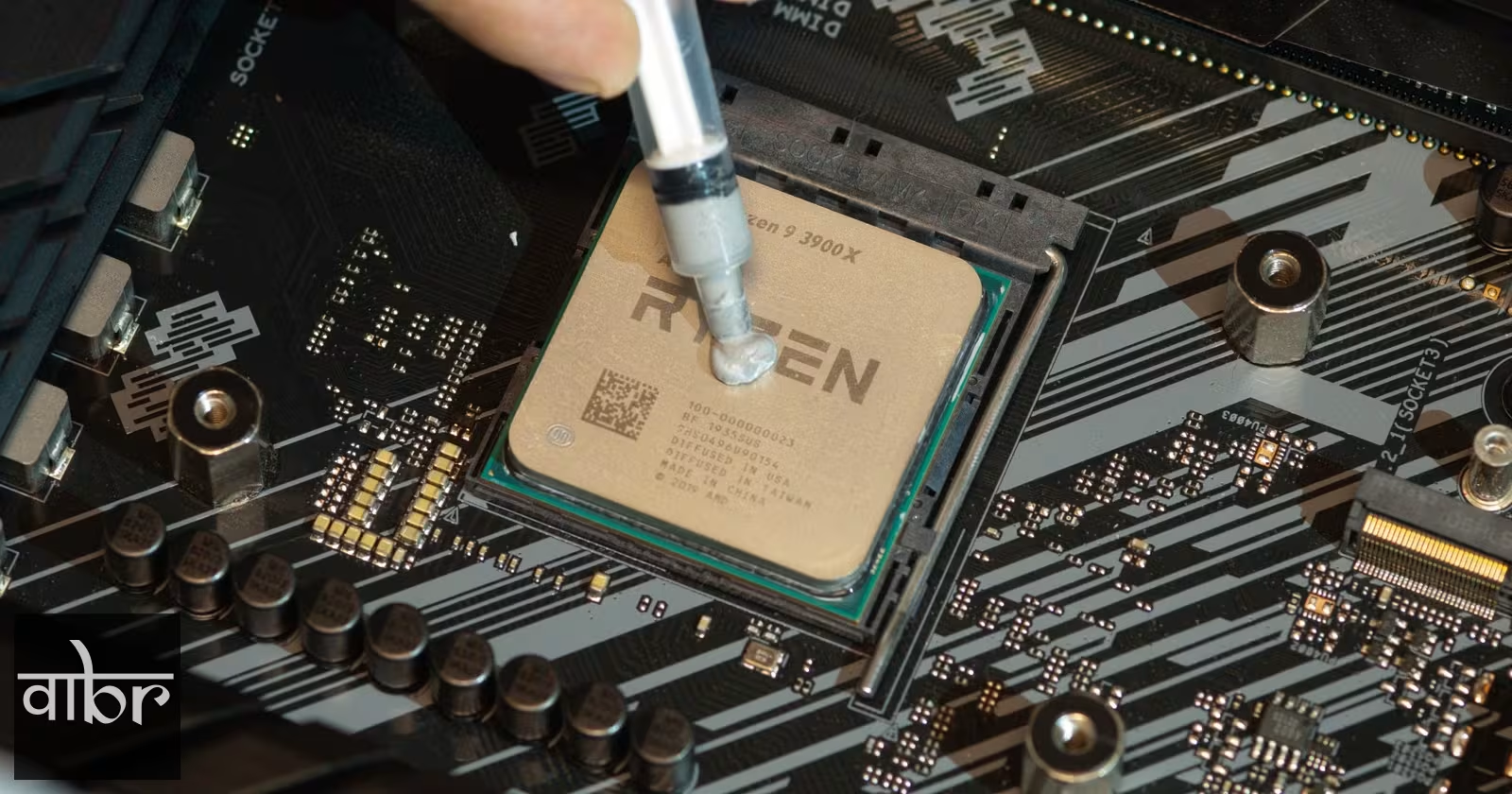
When a computer's CPU or GPU overheats, the system automatically slows down its clock speed—a process known as thermal throttling—to prevent hardware damage. Dust buildup inside cooling vents and fan intakes is a primary cause of silent performance degradation.
Steps to Prevent Thermal Throttling
- Clear Dust Vents: Use a can of compressed air to blow out dust from ventilation ports and cooling fans.
- Maintain Proper Airflow: Avoid using laptops on soft surfaces like beds, blankets, or cushions that block intake vents.
- Monitor Background Processing: Check your system's Activity Monitor (Mac) or Task Manager (Windows) for stuck background processes consuming 90-100% of CPU capacity continuously.
Frequently Asked Questions
Will restarting my computer actually speed it up?
Yes. Restarting clears temporary system RAM, closes hung background processes, clears memory leaks from unoptimized software, and allows pending system updates to finalize installation.
Do free PC cleaner or registry cleaner apps work?
Most third-party "PC Boosters" or registry cleaners are unnecessary and can introduce stability issues or bundled software clutter. Built-in tools like Windows Storage Sense and macOS Storage Management provide safe disk cleanup without third-party risks.
How much free storage space should I maintain for best performance?
Keep at least 15-20% of your primary boot drive free. This ensures the operating system has sufficient space for swap memory files, system updates, and dynamic temporary caches.
Keeping Your Computer Fast
Maintaining system speed is an ongoing process of reducing unnecessary software bloat. By managing startup applications, keeping storage space clear, trimming browser extensions, and maintaining proper hardware ventilation, you can keep your existing PC or Mac running efficiently without needing immediate hardware upgrades.
Varta Brief Editorial Desk
• Newsroom StaffDedicated to objective, deep, and fact-verified reporting across technology, science, world affairs, and modern markets.
Follow Varta Brief on Google
Add Varta Brief as a preferred source to see our verified stories and daily briefings in Google Top Stories and Discover.
Found this briefing insightful?
Share it with your colleagues and community.