
How to Extend Lithium-Ion Battery Health Across Laptops and Smartphones

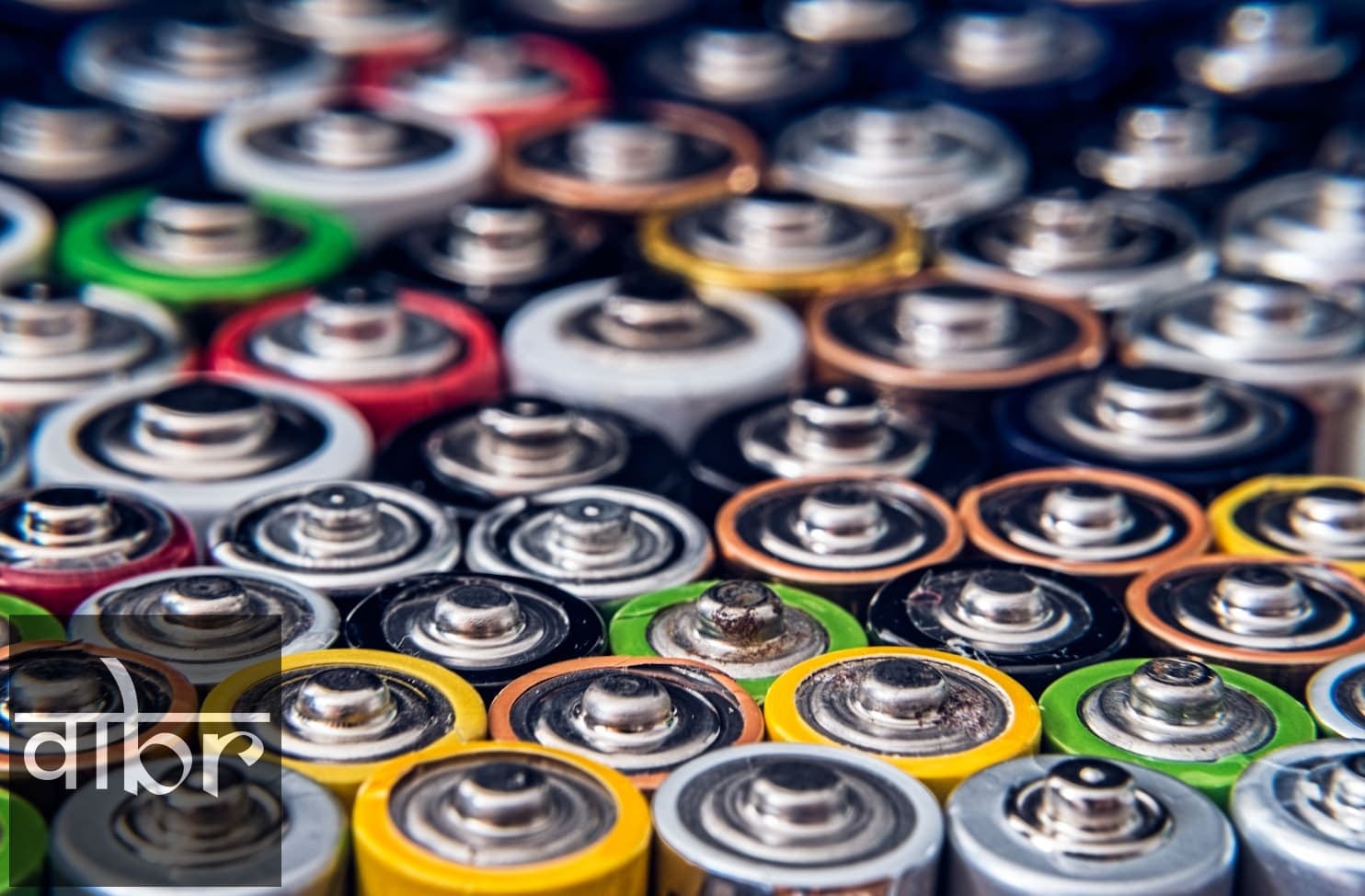
Modern smartphones and laptops are engineered to run at peak performance for years, but their batteries inevitably wear down. If you notice your device dropping from 100% to dead by midday after just a year of use, chemical degradation is the culprit.
Every device powered by a lithium-ion (Li-ion) or lithium-polymer (Li-Po) cell operates on a limited chemical clock. While you cannot stop chemical aging entirely, you can substantially slow it down. Understanding what physically wears out a battery—and how modern charging features work—allows you to add years of functional runtime to your hardware.
The Anatomy of Battery Aging: Cycles, Voltage, and Heat
To preserve battery capacity, you first need to understand the three primary factors that degrade lithium-ion cells:
1. Charge Cycles
A full charge cycle is not defined by plugging your charger in once. One complete cycle occurs whenever you use an amount of power equal to 100% of your battery's total capacity. Discharging from 100% to 50% today, charging it back up, and discharging another 50% tomorrow counts as one full cycle. Most consumer electronics are rated for roughly 500 to 1,000 full cycles before their maximum capacity drops below 80%.
2. High Voltage Stress
Lithium cells experience the most mechanical and chemical stress at their extreme states of charge: completely empty (0%) and completely full (100%). Maintaining a constant 100% charge keeps the cell at a high voltage state (typically around 4.35V to 4.45V), which accelerates parasitic chemical reactions inside the electrolyte and causes internal impedance to climb.
3. Thermal Stress
Heat is the single greatest enemy of lithium-ion chemistry. Operating or charging a device in temperatures above 95°F (35°C) breaks down the cell's solid electrolyte interphase (SEI) layer. Fast chargers generate internal heat, and combining fast charging with gaming or intense video rendering compounds the damage.
The 20% to 80% Rule: Why the Sweet Spot Works
You have likely heard advice suggesting you keep your battery between 20% and 80%. This is not an urban myth; it is supported by battery chemistry research.
Discharging a battery all the way to 0% stresses the anode and can cause copper shunts to form, potentially rendering the cell unchargeable. Charging it past 80% pushes the cell into its highest voltage saturation zone, generating extra heat and internal strain.
Keeping your daily discharge cycles within the 20% to 80% range avoids both stress extremes. In practical testing, cycling between 20% and 80% can more than double the usable lifespan of a cell compared to constantly running full 0% to 100% cycles.
Usage Habit | Impact on Cell Health | Recommended Strategy |
|---|---|---|
Deep Discharges (0% to 5%) | Causes cathode degradation and copper shunting | Plug in before dropping below 15%–20% |
Continuous 100% Float (Wall-plugged) | Sustains high internal cell voltage | Cap charge at 80% using software toggles |
Fast Charging While Gaming | Generates extreme heat (above 100°F/38°C) | Charge while idle, or use bypass charging |
Overnight Charging | Managed safely by modern software, but risks trickle heat | Enable adaptive or scheduled charging |
How to Enable Built-In Battery Protection on Your Devices
You do not need to sit by an outlet watching a battery gauge to protect your devices. Modern operating systems offer built-in charge limiters and thermal monitors designed to handle this automatically.
Apple iPhone (iOS)
iPhone models running recent iOS updates include options to regulate charging curves:
- Open Settings and tap Battery.
- Select Battery Health & Charging.
- Choose Charging Optimization.
- Select 80% Limit (available on iPhone 15 and newer) to prevent the battery from ever passing 80% on regular charges.
- On older iPhones, select Optimized Battery Charging. iOS will learn your daily charging habits and delay charging past 80% until just before you typically unplug in the morning.
Android Phones (Samsung Galaxy, Google Pixel)
Android manufacturers incorporate dedicated battery thresholds directly into system settings:
- Samsung Galaxy: Go to Settings > Battery > Battery protection. Choose Maximum to cap charging strictly at 80%, or Adaptive to transition gently before you wake.
- Google Pixel: Open Settings > Battery > Adaptive Charging. When plugged in overnight during active alarm windows, the Pixel holds at 80% and finishes the final 20% right before your alarm sounds.
Windows Laptops
Leaving a work laptop docked to a charger all day keeps the battery pinned at 100% under high internal temperatures. Most PC manufacturers provide proprietary utilities to limit charging thresholds:
- Dell: Open Dell Command | Power Manager and set the charging profile to Primarily AC Use, which automatically lowers the maximum charge state.
- Lenovo: Open Lenovo Vantage, navigate to Power, and turn on Conservation Mode to hold the charge between 75% and 80%.
- ASUS: Open MyASUS, go to Customization > Power & Performance, and select Battery Care Mode to cap charging at 80%.
- HP: Enter the BIOS menu during startup and toggle Battery Health Manager to Maximize My Battery Health.
Apple MacBooks (macOS)
MacBooks manage battery health intelligently based on usage patterns:
- Open System Settings > Battery.
- Click the information icon (i) next to Battery Health.
- Toggle on Optimized Battery Charging.
If you use your MacBook plugged into an external monitor 90% of the time, macOS will learn this behavior and automatically hold the charge at 80% while displaying "Charging on Hold."
Debunking Common Battery Myths
Myth 1: Charging your phone overnight ruins the battery
Modern electronics have integrated power management chips (PMICs) that cut off current once the cell reaches maximum capacity. Your phone will not "overcharge" or explode from staying plugged in overnight. However, leaving it plugged in can subject the cell to micro-cycles—repeatedly topping up that final 1% as the phone uses idle background power. Enabling Optimized Battery Charging mitigates this issue completely.
Myth 2: You must drain a new device to 0% before charging it
This rule applied to nickel-cadmium (NiCd) and nickel-metal hydride (NiMH) batteries from the 1990s, which suffered from a "memory effect." Modern lithium-ion cells have no memory effect. Deep discharging a new Li-ion device does not calibrate the battery; it merely places unnecessary strain on the chemistry.
Myth 3: Fast charging always degrades battery health immediately
Modern fast chargers (such as 45W, 65W, or 100W USB-PD bricks) negotiate voltage and amperage directly with your phone's processor. They deliver high current only while the battery is between 0% and 50%, when the cell can safely absorb the energy without overheating. As the battery fills, the device deliberately throttles charging speeds down to a trickle. Fast charging only accelerates degradation if the device becomes uncomfortably hot to the touch during the process.
Daily Habits to Protect Your Battery
- Remove bulky cases during rapid charging or intensive gaming: Thick phone cases trap heat, keeping the internal battery baked at elevated temperatures during high-wattage input.
- Avoid direct sunlight in cars: Leaving your phone on a dashboard mount under direct summer sunlight while running GPS and charging is the fastest way to permanently cook a lithium-ion cell.
- Store devices at 50% charge: If you are packing away an old laptop or tablet for several months, do not leave it at 100% or completely flat. Charge it to roughly 50%, power it off completely, and store it in a cool, dry place.
Frequently Asked Questions
At what battery health percentage should I replace my battery?
When your battery health drops below 80% maximum capacity—typically after two to three years of daily use—you will experience noticeably shorter battery life, and the device may throttle processor performance to prevent sudden shutdowns under heavy loads. At that point, paying for an official battery replacement is far more economical than buying a new device.
Does using wireless charging hurt battery health?
Inductive wireless charging is less efficient than a direct cable connection. The lost energy is converted into heat, which radiates directly against the back of your phone where the battery rests. If your wireless charging pad runs hot, use a standard cable for daily power or choose a charging stand equipped with an active cooling fan.
Can extreme cold damage a lithium-ion battery?
Cold temperatures slow down the chemical reactions inside the cell, causing a temporary spike in internal resistance that reduces runtime. While running a device in the cold causes temporary capacity loss, charging a frozen battery (below 32°F / 0°C) can cause irreversible lithium plating, permanently ruining the cell. Always let cold electronics warm to room temperature before plugging them in.
The Bottom Line
Preserving battery health does not require micromanaging every single percentage point. You do not need to unplug your device the exact second it reaches 80%. Instead, let built-in software tools do the work: turn on optimized charging, avoid gaming under heavy heat while plugged in, and avoid leaving your hardware sitting at 0% or baking on a sunny car seat. These small habits will keep your devices running strong for years.
Varta Brief Editorial Desk
• Newsroom StaffDedicated to objective, deep, and fact-verified reporting across technology, science, world affairs, and modern markets.
Follow Varta Brief on Google
Add Varta Brief as a preferred source to see our verified stories and daily briefings in Google Top Stories and Discover.
Found this briefing insightful?
Share it with your colleagues and community.
Read Next

Motorola Edge 70 Pro Offers Clean Software at ₹39,999

AI's Thermal and Energy Crunch: Why Liquid Cooling and Power Grids Are the New Frontier